TricksWorld 99: Security tips

Tab

How to check your PC's temperature


How to check your PC's temperature

Hello Friends,

This Trick is something different that is you can check your Computers temperature very easily using a application called as Real TempReal Temp is a temperature monitoring program specially designed for all Intel single Core, dual Core,quad Core processors and latest processors and even for processors other than Intel. Each of the core on your processors has a digital thermal sensor or DTS which will report the temperature data relative to TjMax which is the safe maximum operating core temperature for the CPU or The Warning Level. When you continously use your PC your CPU gets heated  and your Distance to TjMax will decrease. So when it  reaches zero(0) the processor will start to throttle or slow down so obviously maximizing your distance away from TjMax.

So Real Temp helps you in monitoring your pc temperature and also Warns you if the processor gets heated up thus preventing from and damage that will happen. 


How to check your PC's temperature

              Download Real Temp for free.

Also Read:

How To Send Encrypted Emails In Gmail With SafeGMail

How To Send Encrypted Emails In Gmail With SafeGMail
Hello everyone,
Gmail the number one mailing service which is secured enough.Most of you will be sending email's frequently through gmail, and also the email's you send are very important like passwords,Account details, Pin Codes etc. So to be more secured with gmail there's a extension called Safe Gmail for google chrome.

SafeGmail is a Chrome extension which will encrypt your emails before you send it to the respective person. If your reciever should open the mail which you have sent then he needs to answer the question which you have set. Hence this makes the e-mail tightly secured.

  Question 1 : How To Use the  SafeGmail ????

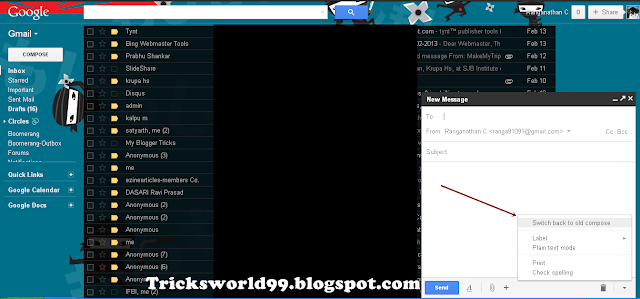
Add the SafeGmail then  just sign in to your Gmail account. But if you want to use this safe gmail feature then you need to switch back to the old compose mode.
So now Click Compose to open up the new compose box. At the  bottom-right corner of the new compose box you can see a small arrow which will be pointing downwards. Click on it and you will see the "More Options"  icon. Click on the "More option" and just select "Switch back to old compose" as shown in the below screen shot.


Now log out and restart your browser and sign in to your Gmail account to use Safe Gmail.(Important !!!)


How To Send Encrypted Emails In Gmail With SafeGMail


Question 2: How to Send Encrypted Emails Using Safe Gmail ????

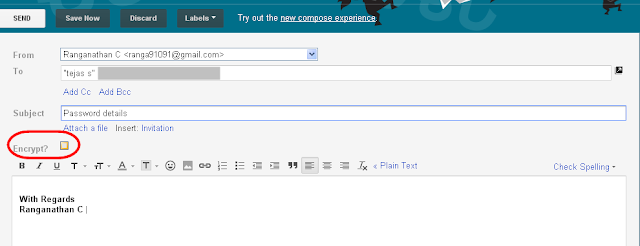
Now to send encrypted emails just compose your email as you do normally. After Composing your email, Just below the Subject you can find the option "Encrypt?" .Check the box if you want your email to be encrypted.


How To Send Encrypted Emails In Gmail With SafeGMail


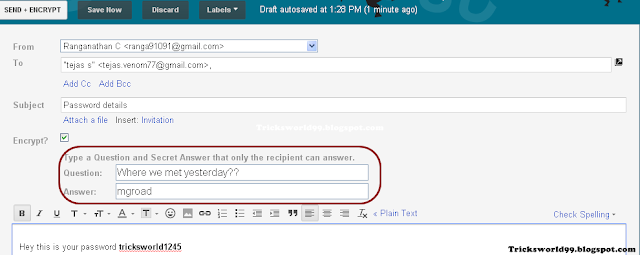
After you have checked the encrypt option,  you will a text field where you need to enter the question and answer. Please enter the question where it can be only guessed by your reciever and Enter your answer also :)
For example: Where we met yesterday?? etc...

 Finally, click on "Send+Encrypt" to send your encrypted e-mail.


How To Send Encrypted Emails In Gmail With SafeGMail

How To Send Encrypted Emails In Gmail With SafeGMail 

Question 3 : How to open the encrypted Email ????

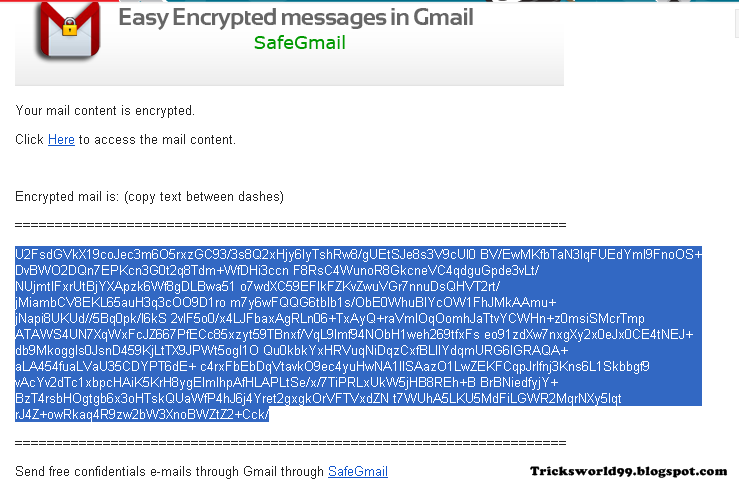
As soon as your recepient gets the e-mail from you, then the person will actually see the contents of your e-mail in an encrypted form. The encryted e-mail will be in the form which doesnt make any sense or have any meaning in it (shown in the below screen shot)  If that persons should read the email means means then he should decrypt the e-mail.
To start the decryption, the person should click the "Here" link as instructed in the email.
 
How To Send Encrypted Emails In Gmail With SafeGMail


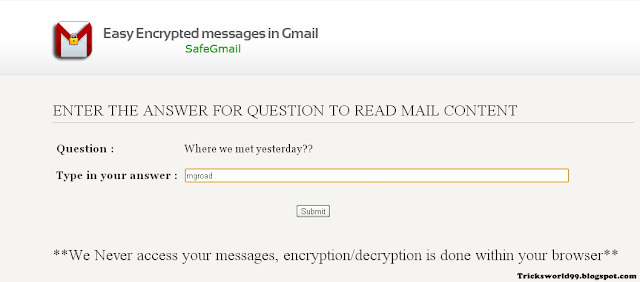
When he clicks on the link then he be directed to a page where the question you had set will appear. Now he should answer the question correctly so that he can decrypt your e-mail.


How To Send Encrypted Emails In Gmail With SafeGMail
If he has answered the question correctly then he must copy the string which was recieved by him ( mail that didnt make any sense) 

How To Send Encrypted Emails In Gmail With SafeGMail
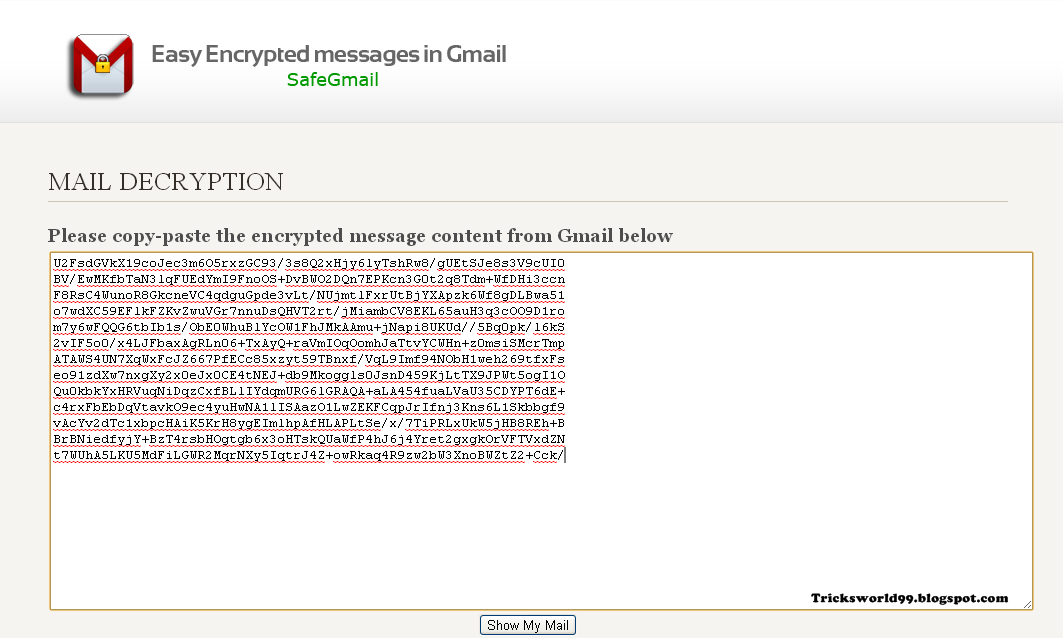
….. then  paste the string of characters into the box of mail decryption page.


How To Send Encrypted Emails In Gmail With SafeGMail
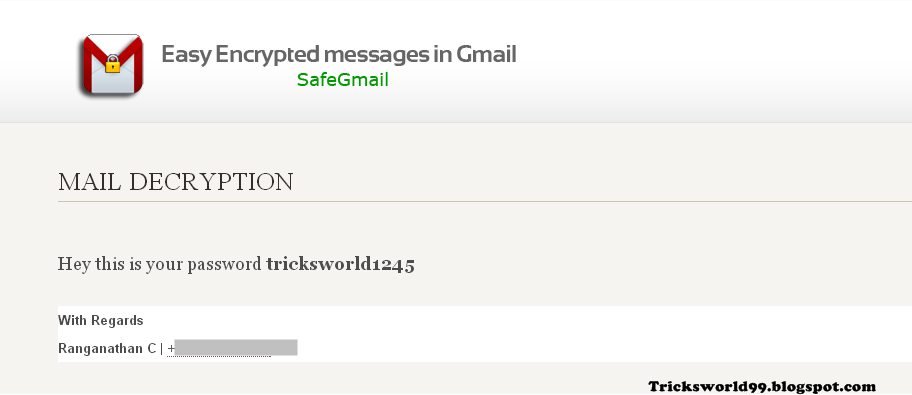
As soon as he clicks on "Show My Mail" the decryption will start and he will see the actual e-mail.
How To Send Encrypted Emails In Gmail With SafeGMail Enjoy !!!!!!


Whos On My WiFi [How To Find Who is Using my Wifi] 2.0.9 Full Serial Key

Whos On My WiFi [Monitor Your WiFi] 2.0.9 Full Serial Key
Are People On Your Network Right Now?If you’ve stumbled across this site, chances are that you’re concerned about how secure your wireless network really is. You might even be concerned that someone you don’t know is connected to your network this very minute.

GiliSoft File Lock Pro 6.5 Full Serial Key / Crack


GiliSoft File Lock Pro is a power file encryption software program that can quickly and safely lock and hide files, folder,and drives,and it can use 256-bit AES encryption (Encryption Standard Adopted by the US Government) to protect your files located on HDD drive or any portable media such as USB drives.
Features and Benefits:

 Hide Data :
GiliSoft File Lock Pro can hide your private files folders and drives, to make them completely invisible to users and programs.

Salfeld Child Control 2012.12.467 Full Serial Key / Crack


Child Control Features
Internet Remote Control

User Management
You can modify the most important settings or view session logs directly on the Internet. No matter where you are. No matter which browser you are using. This feature is part of the Online Functions.


New Ways of Blocking Web Pages
See at a glance what restrictions are in effect for each user, and whether the level of security is adequate for that user. Now you can also reset all elapsed times to zero with a single click.

How to Remove SPAM E-mails Automatically?? [G-mail]


Gmail is a free, advertising-supported email service provided by Google. Users may access Gmail as secure webmail,as well as via POP3 or IMAP4 protocols.Gmail was launched as an invitation-only beta release on April 1, 2004 and it became available to the general public on February 7, 2007, though still in beta status at that time. The service was upgraded from beta status on July 7, 2009, along with the rest of the Google Apps suite.

What is a SPAM???


  • E-mail spam, also known as junk e-mail or unsolicited bulk e-mail (UBE), is a subset of spam that involves nearly identical messages sent to numerous recipients by e-mail. Definitions of spam usually include the aspects that e-mail is unsolicited and sent in bulk. ...

  • (Spam Emails) Due to the high volumn of Spam Emails though the internet in relation to fraud and indecent requests, we will not be responding to any emails from the following countries such as: Nigeria, South Africa, India, Pakistan, Iraq and various Asian Countries. ...

  • Unsolicited or unwanted emails sent to a recipient’s email address. Considered by some to be one of the most serious breaches of internet mail usage because of its intrusive nature (also referred to as junk mail).

It is unwanted email that is sent in mass to a group.


Steps To Remove Spam E-mails Automically in G-mail:


  • Log into your G-mail account, go to Gmail “Settings”.

  • Then in “Filter” window, select a “Create a new filter”.

  • In the appearing window, in the “Has the Words” box, type “in:spam”, click on the “Create Filter with this Search ”, and click “Ok”.

  • Tick “Delete it” and tick “Also apply filter to 0 matching conversations” in the appearing window.

  • Then click “Create Filter”.
                         I kindly request you all to Pls Like our Facebook Fan Page.
                         LIKE us on Facebook & Get Daily updates Easily.

How To Disable Detection Of USB


Hello friends,here is a preity cool and easy trick to disable the detection  of usb in any computer.

First of all back up your registry. 

Now open run command prompt. 

In the box type"regedit"and hit the enter. 

Now go to HKEY_LOCAL_MACHINE\system\CurrentControlSet\Services\UsbStor

Here in the right side, set the value of Start to 4. 

Now restart PC.

How To Use Webcam To create Camera Security System


Friends this post will guide you through how to use some free ,
opensource software called iSpy along with your existing webcams and microphones to create a fully functional motion detecting , recording and alerting setup in your home or office . 
People need surveillance and monitoring software for all kinds of reasons - from bird watching to spying on cheating partners , guarding property , monitoring machinery - the list of applications is endless . Until quite recently the only options have been expensive installations with fixed brands of camera . You can now do it for free , although you'll need a PC , at least one webcam and optionally a microphone . 
First off you'll need to download and install the open source ispy software . 
Installation is easy - you may need to install the .net framework if it isn't already installed on your computer . Note that iSpy can use a fair amount of processing power if you are using multiple cameras or running your cameras at a high resolution/ framerate . 
iSpy can handle an unlimited number of cameras and microphones - well , limited only by the processing power of your computer . The user interface of iSpy is canvas-like - you add cameras and microphones to the main panel by right clicking or using the toolbar along the top . You can add as many USB webcams or IP cameras or video files or even feeds of the desktop . 
Right click on the surface , choose "Add Camera" and then select your webcam from the list and click OK . iSpy will then open up an editor dialog with a lot of options - don't panic ! At this stage your camera has been added so you can just click on Finish and you're good to go . It's well worth exploring these tabs though as you can setup alerts , finely tune motion detection ( important for me as I use it to record shooting stars ) , control PTZ functions , setup automated FTP , automated YouTube uploads and also schedule iSpy to run whenever you like . It's also worth experimenting with the type of motion detection ( iSpy provides 4 different processors all geared towards specific tasks ) . 
Adding a microphone is almost exactly the same process as adding a camera . When you've added a microphone you can then right click and edit your camera and set the microphone you added to be paired with it - this means that when sound is detected the camera starts recording and when movement is detected the microphone starts recording - and also that iSpy will combine the 2 files into one movie that you can watch later . 
You can now repeat steps 3 and 4 to add as many cameras and microphones as you like . The developers of iSpy have also written a ( free and opensource ) program called ispy server that you can install on other computers around your home or office . iSpy Server provides access to USB cameras and microphones running on other computers over your local network . 
iSpy setup 
iSpy running 3 cameras and a microphone 
Source : iSpy 
Setup complete 
Now you've configured iSpy with a bunch of cameras it's time to have some fun ! iSpy can be configured to execute any program when it detects movement ( right click on the camera , click Edit and go to the Alerts tab ) - click on the button next to "Execute file" and select the intruder .mp3 file for a demo . Be sure to set the "Distinct Alert Interval" to a small value when testing . Try moving your hand around in front of the camera ( you'll need to exit the editor to enable alerts ) . There's a green bar at the bottom of the camera feed that shows where the trigger point is for motion detection . This also shows how much movement the camera is currently detecting for reference . You can move the green bar in the editor on the "Motion Detection" tab under "Sensitivity" . 
When a camera or microphone has recorded content the border highlights yellow . To watch the recorded content you have 2 options - either access the files directly by right clicking and selecting "show files" or by using the much more user friendly web interface . Local access to the web interface is also free but you will need to create a free account at iSpyConnect .com . 
Using the web interface 
The web interface is where you can view all your live cameras , recorded content , switch on or off cameras and microphones , delete files , share access etc etc . iSpy provides free access to all your captured content when running over your LAN . For external access you'll need to purchase a subscription ( from $3 a month ) - and that'll enable you to access iSpy remotely , receive email , SMS and MMS alerts and also setup things like streaming to websites , sharing access to your cameras with other people , using dynamic DNS , using remote commands ( executing any program on your computer on demand ) and much more . I'd highly recommend getting a subscription to iSpy services as it's cheap as chips and really enhances the functionality of the software . 
If you can't stretch to $3 a month though , iSpy offers other ways to access your content remotely . You can setup FTP to periodically upload frames from your webcam to an FTP server , or you can automatically upload captured video to YouTube by adding your YouTube login details to settings . 
Download this software from here.

Computer Security Tips


Guys ,the term 'hacker' has been rampant around the internet recently.  
Actually , it has been the dirty word of the internet since the 80's and the classic hacker movies of the early 90's . It's not a word you want to throw around loosely ; it scares people and causes panic because the path of destruction can be crippling . 
Whether your 15 year old opened a scam email and infected your family computer , or a virus has taken down your entire system at the office - most people have witnessed the effects of an online security breach . 
While the term Hacker has seen resurgence with the handywork of LulzSec , and the recent attacks in Syria and Hong Kong ; now might be a good time to review a few tips to reduce your computer security risks . 
Computer Safety Tips-Run an updated virus protection : viruses change on a daily basis , make sure you have the right protection and that it isn't out of date or expired . 
Change your password regularly : Even a slight adjustment every few months will help , and keep it a secret ! 
Read and pay attention to the terms and copyrights of downloaded files : Don't just click 'ok' . Do a little bit of reading into what the file contains and where it will end up on your computer . 
Make sure your OS ( Operating System ) is patched : You can be left vulnerable without proper and up-to-date patches . If you are unsure about the staus of your patches , talk to your IT team ( or infrastructure host ) regularly about updates . 
Run backups on all your files ! It's simple , but too often underused . Just like Carrie Bradshaw in Sex and the City , you will be happy you did . 
Be conscious of how you are transmitting personal or sensitive information : don't send credit card info or passwords in the body of an email , it's just not safe . If you need to send information , attach it as a file or even better - pick up the phone and communicate it verbally . 
Lock your computer when it is unattended : this will save you from pranks and information stealing . It's
like leaving your baggage unattended at airports . . . 
Be careful of resource-intensive software/streaming files and media . Be proactive , set rules and limits at home and at the office . Make sure all media is downloaded from a reputable source . 
Choose a reputable host : Ask questions about security methods/systems , read customer testimonials , get what you pay for ! 
Some of these tips seem simple , routine and come second-nature . But incorporating all of these suggestions into your regular computer habits can save you a lot of devastation , recovery time and money at the hands of a hacker or a virus.


RoboForm Password Manager Software


Guys,Roboform is the top-rated Password Manager asecurely stores online and offline passwords , automatically logs you into online accounts and completes online registration and checkout forms with one click . RoboForm is a push-button web form filler with some serious Artificial Intelligence inside . It allows you to define your personal profile or "usual" responses to a web form . This information is then saved , and when you need to fill a form , just click "Fill Forms" button , and form is filled out . Works as an add-on to Internet Explorer , Mozilla , Firefox web browsers .
RoboForm2Go works on USB Flash Drives . Plug your flash drive into any computer and enjoy all the benefits of RoboForm .
Install this version directly on your flash drive . Store and back up your RoboForm files on your Windows Mobile , Palm , or Symbian device . View and search RoboForm files . Includes full featured password generator .
AI RoboForm is fully client-based , so it is very fast , it never disables web site functions , and it works even in pop-up HTML windows . The most important feature of
AI RoboForm is high accuracy - it fills 95% of all fields correctly .
It works with IE 6 , 7 , 8
Firefox 2 , 3 , 3 .5
Chrome/Chromium
XP , Server , Vista , Windows 7
USB Devices
iPhone , WinMobile , Palm , BlackBerry , Symbian
Mac , Opera , Linux access through RoboForm Online
You can do with RoboForm-
Manage your passwords and Log In automatically .
Fill long registration and checkout forms with one click .
Encrypt your passwords to achieve complete security .
Generate random passwords to maximize password strength .
Back up and Synchronize Passwords between computers .
Fight Phishing and Defeat Keyloggers .
Features-
AutoSave passwords in browser .
AutoFill passwords to login form .
Click Login button for you .
Fill personal info into online forms .
Save offline passwords & notes .
Generate Secure Random Passwords .
Encrypt passwords and personal data using AES , Blowfish , RC6 , 3-DES or 1-DES algorithms .
All personal info is stored on your computer only .
Take RoboForm with you on USB disk for ultimate portability .
Sync your passwords and notes to Palm or Pocket PC .
Backup & Restore , Print your passwords .
More features : drill down for more .
It is well-behaved : NO ADWARE , NO SPYWARE .
Works under Windows as an add-on to IE-based browsers .
Works with Netscape , Mozilla , Firefox under Windows .
Download This Software From Here.

How To Clear Youtube Search History


Friends in this post i will tell you that how to delete your youtube search history from your computer .
Whenever you do searches on YouTube , it'ill be recorded in Google's user logs if you are signed in to your account . With Google's new policy update , they've started storing all searches and activities on all their services . According to Google , it may be due to security threats but their intention is clear that this data is enough to enhance social networking advertisements . But as a YouTube user , you have left with an option to delete the search history from your eyes . You can follow the below steps to delete search history from your PC or YouTube android application .
First of all , you need to sign-n to your personal YouTube account . Probably this will be your default Google account .
On the right top corner of the page , you have to click on your username and select Video Manager from the
drop-down list .
In the left pane , select search history and click "Clear all search history" and confirm . That's it . You also can delete all your video viewing history . To do this , select History from left side and repeat the above steps .
That's it .

How to remove new folder.exe virus from pendrive


If you are using pendrive for data transfer at school, college or at your office you must have come across this virus. This virus creates an exe file in your usb drive with the name New Folder.exe. Here are some symptoms of this virus.
  • Task manager is disabled.
  • Registry Editor is disabled.
  • Folder options not working.
  • Taking too much time for accessing pendrive.
  • Uses half of your computers processing power.
You can easily remove this virus from your computer by using Smart Virus Remover tool. It is a small 550 Kb file. Just download the file from the link given at the end of this article. Run this downloaded exe by double clicking on it.Then click on “Delete Autorun.inf file”.

After that click on ” Remove virus from USB”. The virus will be removed from your pendrive. To restore your task manager, registry editor and other things which were disabled by virus – click on “Restore Default Windows Settings”.
remove new folder.exe virus

Download Smart Virus Remover

OR

Download and install combofix from here

How to Password protect your files and folders on Windows


Most of us often need a way to hide files and folders on our computer for one or the other reason especially guys :) lol!!!!!!. Today I am going to show you guys a 100% working way to password protect your computer files and folders.
TrueCrypt is a freeware developed to encrypt user files on Windows.

Follow the step by step guide given here to know how to encrypt your files.But before doing that download and install TrueCrypt from here.
  1. After installing TrueCrypt run the exe file.
  2. On the first screen click on “Create volume” button.
  3. On next screen select “Create an encrypted file container” and click next.
  4. In volume type select “Standard TrueCrypt volume” and click next.
  5. In next screen it’ll ask you to select a file. This file will be used to create a virtual drive on your computer. All your data will be written in this file. Just click on “Select File”. Create a new file anywhere you want and click next.
  6. In all other screens do not change any options just keep clicking on next. Select a password when it prompts you to enter a password. At the end it will ask you to format. Click on the format button and done. (Don’t worry, formatting will not delete any data from your computer. It’ll just create a new virtual hard drive.)
  7. By now you’ve created a virtual drive. Now its time to mount it. Select the drive name from the main window and then click on “Select File”. Select the file you created while creating the drive and done. Your encrypted virtual drive is ready.
  8. Now whenever you feel like encrypting (hiding) some data just mount your drive using TrueCrypt and copy all your data to this drive. And when you’re done DO NOT FORGET TO UNMOUNT THE DRIVE.  Because it does not require password to open the drive and files in it. It will ask you for the password only when you are mounting the drive. So keep that in mind.

How to Password protect your Google Chrome browser


Simple Startup Password is an addon for Google Chrome browser that blocks unauthorized people from using your browser.  Just go to the extensions gallery of Google Chrome and install the Simple Startup Password add-on for your browser.
After installing the add-on go to Settings -> Tools ->Extensions. There look for Simple Startup Password and click on Options. Set a password for your browser and done. Now every time you start your Google Chrome browser it will ask you for the password and if you fail to give the correct password your browser will be closed.
You can get this add on from Google Chrome’s extensions gallery.

Link : Simple Startup Password for Google Chrome

How To Block websites without using any software


It is easy to block a website on a computer using any software or just by changing the dns server and making few settings but if you don’t want to use any additional software or service then too you can block websites on your Windows machine. All you will require for this is :

  1. A windows machine.
  2. A text editor (notepad will do).
  3. A web browser .
Just follow the steps given below to block a particular website.
  1.  Navigate to the  C:\WINDOWS\system32\drivers\etc
  2. Find the file named “HOSTS”
  3.  Open it using notepad.
  4.  Under “127.0.0.1 localhost” Add 127.0.0.2 www.orkut.com , and that site will no longer be accessable.
  5. Done!
example :
127.0.0.1 localhost
127.0.0.2 www.orkut.com
- www.orkut.com will not be accessible anymore.
If you want to add more sites then just increment the IP address by one and add it to the list.
i.e. 127.0.0.3 www.yahoo.com
127.0.0.4 www.msn.com
127.0.0.5 www.google.com
You can use this trick to block popup sites as well or any other advertising site.

How to Know a Malicious Link Without Clicking It


Even the best security software can’t protect you from the headaches you’ll encounter if you click an unsafe link. Unsafe links appear to be shortcuts to funny videos, shocking news stories, awesome deals, or “Like” buttons, but are really designed to steal your personal information or hijack your computer. Your friends can unknowingly pass on unsafe links in emails, Facebook posts, and instant messages. You’ll also encounter unsafe links in website ads and search results. Use these link-scanning tips to check suspicious links. All of these solutions are free, fast, and don’t require you to download anything.

Hover Over the Link

Sometimes a link masks the website to which it links. If you hover over a link without clicking it, you’ll notice the full URL of the link’s destination in a lower corner of your browser. For example, both of these links connect you to PCWorld’s home page, but you wouldn’t know that without hovering:

click here!!!


Use a Link Scanner

Link scanners are websites and plug-ins that allow you to enter the URL of a suspicious link and check it for safety. There are many free and reliable link scanners available; I suggest you try URLVoid first. URLVoid scans a link using multiple services, such as Google, MyWOT, and Norton SafeWeb, and reports the results to you quickly.


URLVoid scans several security databases for information on sketchy Web domain names.

Check Out Shortened Links

URLVoid can’t properly handle shortened URLs from services such as bitly, Ow.ly, and TinyURL (URLVoid will scan the shortening service website instead of the link to which it points). To scan the mysterious shortlinks you’ll often find on Twitter and Facebook, use Sucuri. Sucuri automatically expands the shortlink and draws upon a handful of services, such as Google, Norton SafeWeb, and PhishTank, to determine if the real link is safe. You can also use Sucuri for scanning nonshortened links, but URLVoid checks more sources.

Sucuri can help you determine whether shortened links are safe or not.
Copy a Link--Safely

Services like URLVoid and Sucuri require you to type in or paste a suspicious link—but how do you quickly and safely grab the URL without opening anything? Easy. Just right-click the link to bring up a context menu, then click Copy shortcut (in Internet Explorer), Copy Link Location (in Firefox), or Copy Link Address (in Chrome). The URL is now copied to your clipboard and you can paste it into any search field.

HOW TO KNOW WHO USED THE PC IN MY ABSENCE


Want to know Who Used Your Pc In Your Absence & what Did He Do?

just follow these simple steps

start > run >eventvwr.msc


Events are stored in three log files: Application, Security, and System.

These logs can be reviewed and archived.

For our purposes we want the System log. Click on "System" in the left-hand column for a list of events.

Look for a date and time when you weren't home and your computer should have been off.

double click on the eg: info n it will show u the detail.

You can also use this log to see how long someone was on the computer.

Just look at the time the computer was turned on and off for that day.

Block access to drives in Windows 7 ultimate/premium


IF you want no one to open a drive without your permission.
it is possible in Windows 7 ultimate/premium
To block access to drive go to Computer and right click on the drive and select properties. In the properties window click on ‘Security’ tab. Select the user account you want to restrict and click on edit.

Change the permissions according to your need for user groups or a particular user and click Apply and then OK. It will not work for users with admin account as even they have the same rights as you so they can revert all permissions. You will need an admin account to perform this task.


NOTE:This trick is for Windows 7 ultimate and premium edition users only

SECRET WAY TO ACCESS INTERNET


Have you ever accessed internet by using a calculator.
NO ! ok dont worry here is a trick that allows you to access Pages By Using A Calculator!!!

1) When you open the windows calculator, calc.exe, you can go to help and then click help topics.
Note: This can be done through any of the basic Windows applications, such as notepad.

2) Right click on the title bar and go to 'Jump to URL'

3) Type your URL (Make sure you put in http:// eg: http://www.besthacking99.blogspot.com)